A booking request is a customer asking you by name to do a job on a set day. You have an hour to press Accept the order or I can’t.
Say Andrei P. needs his one-room flat in Botanica cleaned tomorrow morning. He picks you and one more cleaner from the list and sends one request to both. Whoever accepts first gets the order, at their own rate.
Where a request shows up
Notifications: New request, with the day, the time window and when to answer. Open the request opens it.
My orders, the As a tasker tab: the row is marked Request and says “Answer by 20:51”. The red number on My orders in the header counts the rows waiting for you.
Messages: the chat with the customer starts with the request as a card.
A request doesn’t come by SMS or email, so check deal.md during your working hours.
Requests reach only taskers customers can book: a published profile with a photo, a headline, an about text and a rate, Taking orders on, and fewer orders in progress than your limit. Become a tasker and publish your profile walks through each step.
What the request shows
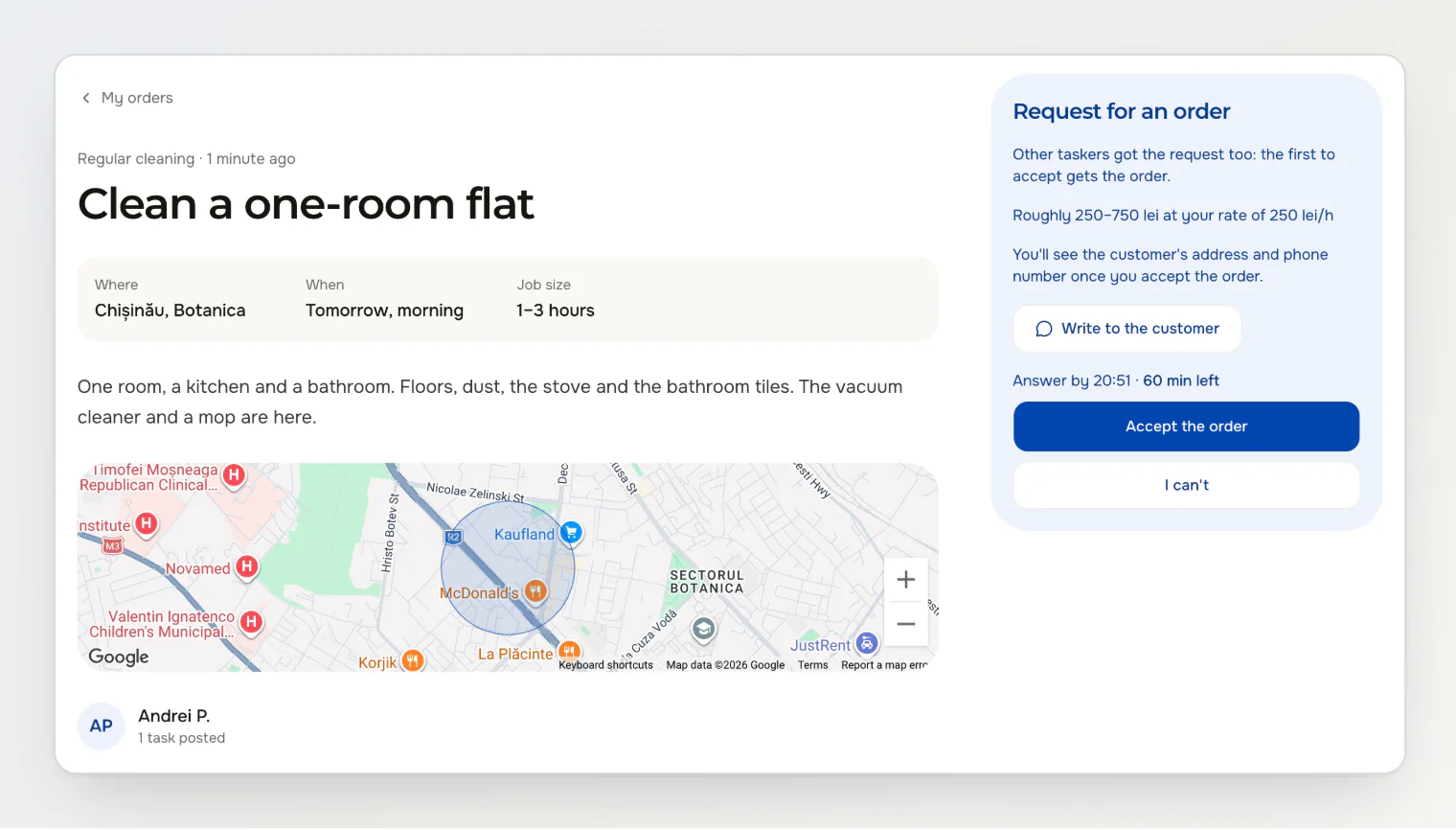
On the left is the task: the service, the district, the day and the window, the job size in hours, the customer’s description and photos, and, when the customer marked the place, a circle on the map around it. Under the map are the customer’s first name with an initial and how many tasks they posted and completed.
On the right, Request for an order shows:
“Other taskers got the request too: the first to accept gets the order.” when you are not the only one asked;
the rough total, your rate times the job size’s hours. A medium job is 1–3 hours, so at 250 lei an hour it reads “Roughly 250–750 lei at your rate of 250 lei/h”. A small job is up to an hour. A large one is 4 hours or more, and its sum has no upper end;
a note that the address and the phone number come once you accept;
the deadline: “Answer by 20:51 · 60 min left”.
The rate is the one your profile had when the request came. Changing your rate later doesn’t change this request.
Write to the customer opens the chat, so you can ask about the job before you answer. Phone numbers and links in the chat stay hidden until the order is confirmed. More in Chat with a customer or a tasker.
Accept the order
If you already hold as many orders in progress as your limit, Accept the order is off and the panel says “Finish your current orders first: you have 3 of 3. The limit grows with good reviews.” The limit is 3 orders, then 5 after your first review of 4 or 5 stars, 15 after five such reviews and 20 after ten.
Open the request from New request, or from My orders → As a tasker.
Check the day, the window and the job size. If something is unclear, ask through Write to the customer while the hour runs.
Press Accept the order.
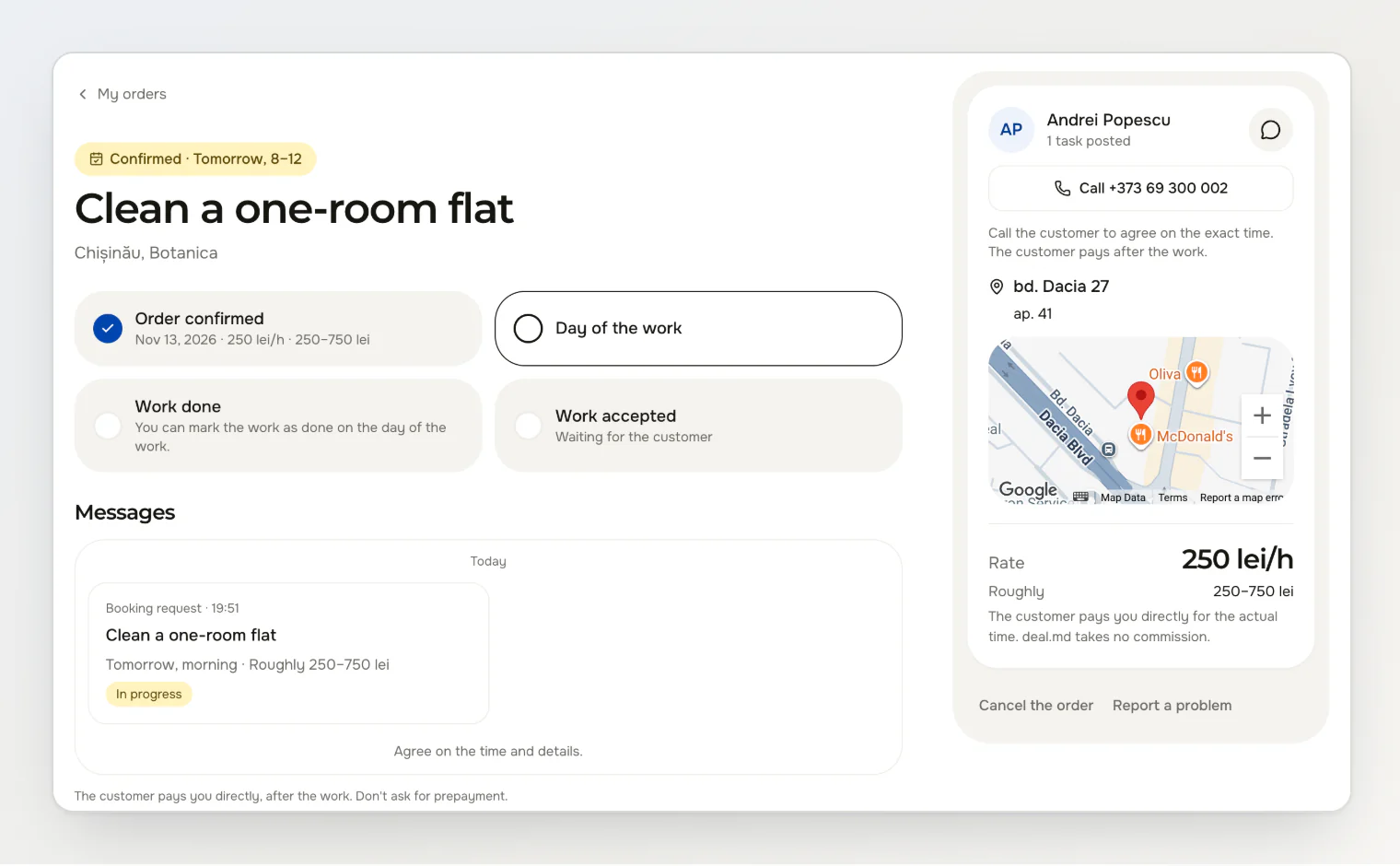
The order is made at once, with no confirmation step. The page turns into the order: “Confirmed · Tomorrow, 8–12”, the customer’s full name, Call with the phone number, the address, and the chat under Messages. The customer gets “Your request was accepted”.
If the address doesn’t suit you, cancel in the first hour: a cancellation in the first hour after the order is made never counts as late. See Cancel an order or report a problem.
Decline with I can’t
You can’t take a request back after you decline it.
Press I can’t.
Press I can’t again in Decline the request?.
The request now reads “You declined”. In the customer’s list of asked taskers, your row says “Can’t take it”. The customer gets a notification only when no asked tasker is left to answer.
The first tasker to accept gets the order
A customer asks up to three taskers at a time. When one of them accepts:
the order goes to that tasker, at their rate;
the other requests on the task close with “Another tasker took it”, and those taskers get the notification “Another tasker took the job”;
a tasker who presses Accept the order a moment later sees “This request has already been answered or closed”.
The customer’s side of the same request is in Book a tasker directly.
An hour to answer, and the night rule
The hour starts when the customer sends the request. Two exceptions, both in Chișinău time:
A request sent after 20:00 is due at 9:00 the next morning, since its hour would end after 21:00.
A request sent before 8:00 is due at 9:00 the same day.
“Answer by” shows only the time when the deadline is today, and adds the day, as in “Sat 09:00”, when it falls on another day. The minutes left appear in the last hour.
If you don’t answer in time
When the time runs out, the buttons go and the request reads “Time to answer is up”. The customer sees “No answer” next to your name. Once no asked tasker is left waiting, the customer gets a notification and can ask other taskers or post the task for offers.
The customer can also cancel the request before you answer. It then reads “Request cancelled”.
How your answers set “Usually answers within …”
Your public profile shows “Usually answers within 15 minutes”, “within half an hour” or “within an hour”. It comes from your last 20 requests that you answered or let run out:
Accept the order and I can’t count alike: the minutes from the start of your hour to your answer.
A request you let run out counts as 60 minutes.
Requests another tasker took first or the customer cancelled don’t count.
The profile takes the median, the middle value: 15 minutes or less reads “within 15 minutes”, 30 or less “within half an hour”, more than that “within an hour”. The line appears once there are three such requests. A request due at 9:00 counts from 8:00, so an answer before 8:00 counts as zero minutes.
Pause requests with Taking orders
Turn Taking orders off for the days you can’t answer. New requests and task alerts stop, and customers don’t find you among taskers to book. Requests already sent stay, and their hour keeps running. Orders in progress and sent offers stay as they are. The switch is on your tasker profile page and behind the green dot in the header, which turns grey while it’s off.
Continue reading
Book a tasker directly — the same request from the customer’s side.
Become a tasker and publish your profile — what a profile needs before customers can book you.
Getting your first orders on Deal as a new tasker — offers, requests and the two limits that hold until your first good review.